Import Excel XML Spreadsheet - Editor Table Menu
This command will Import an existing Excel® XML Spreadsheet into a SpecsIntact Formatted Table.

Before attempting to Import an Excel® Spreadsheet verify the file extension is XML not XLS. SpecsIntact can only import XML files. If the file is an XLS Workbook, it must be saved as an Excel® XML Spreadsheet before continuing.
 It is important to understand the format of the Excel®
XML Spreadsheet will determine how well the Table imports into
SpecsIntact. Make
sure the spreadsheet is meticulously organized and formatted. Illustrated
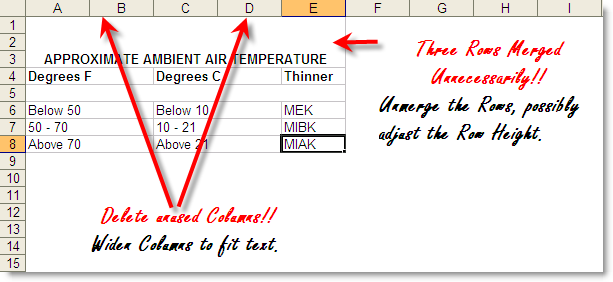
below is an example of a spreadsheet that can be a potential formatting
problem when imported into a SpecsIntact Table.
It is important to understand the format of the Excel®
XML Spreadsheet will determine how well the Table imports into
SpecsIntact. Make
sure the spreadsheet is meticulously organized and formatted. Illustrated
below is an example of a spreadsheet that can be a potential formatting
problem when imported into a SpecsIntact Table.
Example: Formatting that can cause adverse results when imported.
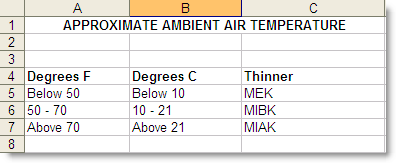
Example: Suggested format changes after Unmerging Rows and Deleting Unused Columns as illustrated above.
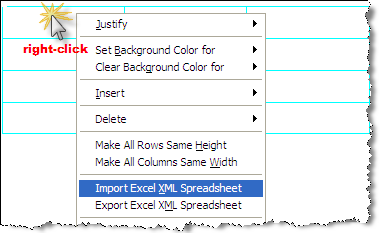
To import an existing Excel XML Spreadsheet into a SpecsIntact Section:
Place cursor over the first cell
Right-click and choose Export Excel XML Spreadsheet
From the Specify File Name dialog Box, browse to the the Excel XML Spreadsheet, select Open
The data contained within this file has now been imported into the SpecsIntact Formatted Table.
Some minor adjustments to the column width and row height
may need to be done once the Excel®
XML Spreadsheet has been imported into the SI Editor.

SpecsIntact tables have similar characteristics to Microsoft Worksheets. Table Editing tips can be found on the Table | Insert | Table topic.
