


Yes! While editing your Job one of the most useful tools you can learn to use is the Bracket Replacement Feature. This feature allows you to easily locate and choose bracketed options.
Using Bracket Replacement:
 One
of the most important steps in using the Bracket Replacement is first
setting up the correct options.
One
of the most important steps in using the Bracket Replacement is first
setting up the correct options.
From
the SI Editor select
the Bracket Replacement Button
 from the SI Toolbar.
The Bracket Replacement dialog box will open, as shown below. Select Show Details
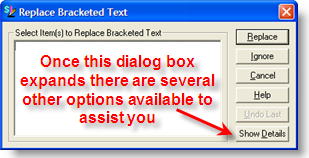
Choose Pause After Each Change.

It is important to use this option in order to remain at the location you are editing. If you do not choose this option, the next time you use the Bracket Replacement you may find yourself at the next occurrence that maybe further into the section than you planned.
The first time you choose a bracketed option, you will receive a message stating "The SpecsIntact Editor will pause after each replacement, to continue press the F3 key.

The F3 shortcut key is used as "Find Next". This shortcut key works with any of the find features.