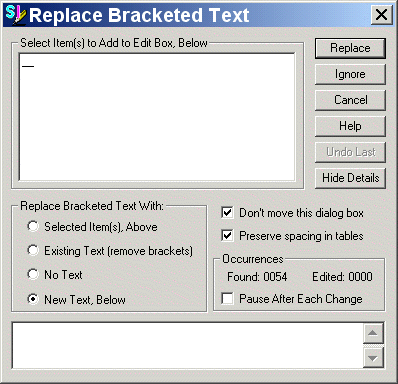
Bracket Replacement - Editor Edit Menu

 This command can be executed from the Editor
Toolbar
This command can be executed from the Editor
Toolbar
This command provides an automated process for identifying bracketed options and selecting or filling in the option to be included in the specification. Options not selected are removed, along with the brackets.
Examples:
<TXT>Drawings will be submitted [30] [60] [90] days prior to commencement of excavation.</TXT>
With selected option inserted and other options and brackets removed:
<TXT>Drawings will be submitted 30days prior to commencement of excavation.</TXT>
The Replace Bracketed Text dialog box provides the following functions:
|
|
Replace – Inserts the selected option(s) and deletes those not selected and all brackets.
Ignore – Leaves the displayed options and brackets unchanged, and moves to the next occurrence of brackets in the Section.
Cancel – Closes the dialog box and returns to the Editor.
Undo Last – Reverses the bracket replacement actions, one at a time, last replacement first (not available when using the checkbox for Pause After Each Change). |
-- Controls the display of the following additional functions:
Selected Item(s), Above -- (default option) Inserts only the selected option(s) and removes brackets.
Existing Text (remove brackets) – Inserts all options and removes brackets.
No Text – Removes all options and brackets.
New Text, Below -- Removes all options and brackets, and inserts text entered in the text box.
For multiple selections, clicking the first option, holding the Shift key, and clicking the last option will insert all options between the two points and remove the brackets.
Holding the CTRL (Control) key and clicking options will insert those options, while deleting the brackets and any options not selected.
– The screen position of the dialog box remains fixed when this box is checked, even if it covers the selected bracketed options in the Section. When this box is unchecked, the dialog box will move with each occurrence to allow you to see the location of the bracketed options within the Section text.
-- When selected, this option will replace any character deleted from a table during bracket replacement with a space, in order to preserve table layout.
– This counter keeps track of how many sets of bracketed options have been located so far since the function was activated, and how many of them were edited. The counter resets when the dialog box is closed (including when the Pause After Each Change check box is used).
-- Closes the Replace Bracketed Text dialog box after action on each set of bracketed options without moving to the next occurrence. Clicking the Find Next button on the Editor toolbar or pressing the F3 key reactivates the dialog box and begins the search with the next set of bracketed options. The Occurrences counter is not available when using this option.